Grab and Decorate Controls and Inputs
Learn movement, combat, grab, decorate, and menu shortcuts so every session feels smooth.
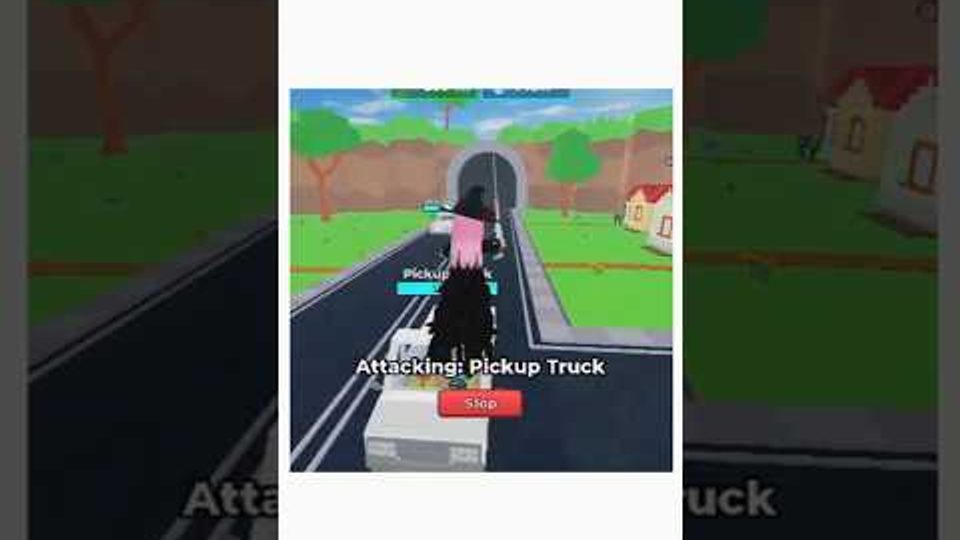
Mastering Grab and Decorate controls turns a clumsy first hour into a clean smash-grab-decorate loop. This page covers how to move around the map, break delivery trucks, pick up furniture, carry loot home, enter decorate mode, paint surfaces, open the codes panel, and use common Roblox platform shortcuts on PC and mobile. Pair it with Getting Started for day-one goals and Smash Trucks once combat feels comfortable.
Platform basics
Grab and Decorate runs on Roblox, so the default movement layer matches other experiences. On PC you walk with WASD, look with the mouse, and jump with Space. On mobile you use the on-screen thumbstick and camera drag. Sprint or shift-run follows your Roblox settings if enabled. Always unlock the mouse from menus before you try to aim at a truck—many new players think combat is broken when the cursor is still stuck in a UI panel.
Camera distance matters more here than in pure combat games. Pull the camera back slightly when you approach a truck so you can see spill piles after the smash. Zoom in when decorating indoors so furniture snaps align with walls and rugs. If the camera clips through a wall after a room unlock, step outside and re-enter the house once to reset collision feel.
Finding trucks and starting a smash
Delivery trucks travel fixed routes on the outdoor roads. Sprint toward a truck, face it squarely, and use your equipped weapon attack input (default left click on PC, tap attack on mobile) until the vehicle breaks. Keep moving while you swing so you stay glued to the truck’s path instead of standing still and missing hits. When the truck shatters, furniture spills onto the road—stop attacking and switch into grab mode mentally: you are collecting now, not fighting.
If clear times feel slow, that is a power problem, not a controls problem. Spend cash on weapon upgrades, then return. The weapons tier list and Earn Cash pages explain how to fund those upgrades without wasting sessions.
Grabbing, carrying, and returning home
After a smash, walk over dropped furniture and use the interact / grab prompt Roblox shows (often E on PC or the on-screen interact button on mobile). Carry capacity is limited by how carefully you path home—overloaded trips that clip into walls waste time. Prefer two clean trips over one chaotic haul when the pile is huge.
Know the shortest safe path from common truck spawns back to your house plot. Drop or store pieces as soon as you cross the threshold so you can sprint out again. Furniture sitting on the lawn does not decorate rooms; only placed pieces count toward the house you show friends and toward the feel of chasing Full House after unlocks (see Unlock Rooms).
Decorate mode: place, rotate, remove
Enter decorate / edit mode from the in-game furniture UI once you are inside your house. Select a piece from inventory, move the ghost preview with the camera and movement keys, rotate until edges align with walls, then confirm placement. Learn remove / pick-up early so bad drops never become permanent clutter. Large anchors (sofas, beds, big tables) go down first; mid pieces next; accents last—full layout advice lives on Decorate and Paint.
Painting uses the paint tool on walls and floors. Pick a color, aim at the surface, and apply. Warm tones pair well with Thanksgiving commons from GOBBLE26; cooler neutrals support Exclusive pieces from BLURPLE. Do not paint every wall before furniture is placed—color choices look different once big pieces sit against them.
Codes button and other right-side UI
The CODES button sits on the right side of the screen. Open it, click the Enter code here! field, type a case-sensitive string such as BEGINNER, and press REDEEM. Full reward tables live on the Codes Hub; click-by-click troubleshooting is on How to Redeem. Close the panel fully before you try to smash again so inputs return to the world.
Other right-side or HUD buttons typically cover inventory, weapons, pets, and settings. Tap each once during your first session so you know which panel does what. Accidental double-taps on mobile often reopen the last menu—pause a beat after closing UI.
Mall and map navigation
The Mall is a separate shopping area for furniture beyond truck RNG. Learn the path from your house to the Mall entrance so shopping trips stay short. Inside, browse categories with the same camera and interact prompts you use outdoors. Buy only wishlist items, then return home to place them in the same session. Strategy details sit on the Mall Guide.
If you get lost after a room unlock, exit to the outdoor plot, reorient on truck roads and the Mall landmark, then re-enter. New wings of the default house can feel maze-like until you place a large anchor near each doorway.
PC versus mobile tips
PC: Precise mouse aim helps truck tracking and furniture rotation. Bind comfortable keys if you remapped Roblox defaults. Use keyboard for chat only when standing still so you do not walk into traffic mid-type.
Mobile: Increase brightness outdoors so truck spills are visible. Use a higher graphics quality only if your device keeps a stable frame rate—dropped frames make grab prompts feel late. Consider a clip-on controller if you decorate for long sessions; thumb fatigue causes sloppy placements.
Common control mistakes
- Leaving the codes or shop UI open and wondering why attacks do nothing.
- Grabbing every spill including junk you will never place.
- Decorating from a zoomed-out camera that hides snap errors.
- Fighting tough trucks before learning basic move-and-swing timing.
- Forgetting to redeem free codes that would have skipped awkward early furniture droughts.
Spend ten focused minutes practicing smash, grab, return, and place with no other goals. Once those four verbs feel automatic, every other guide on this wiki—cash farming, Mall shopping, seasonal events on Updates—becomes easier because your hands already know the loop.
Frequently Asked Questions
Quick answers for Grab and Decorate players.
What are the basic Grab and Decorate controls?
Move with WASD or the mobile stick, attack trucks with the weapon input, grab furniture with the interact prompt, then use decorate mode at home to place, rotate, and paint.
Where is the codes button?
CODES sits on the right side of the screen. Open it, type a case-sensitive code, and press REDEEM.
Why can’t I attack or move?
A menu is probably still open. Close CODES, shop, or inventory panels fully so focus returns to the game world.
How do I rotate furniture while decorating?
Enter decorate mode, select a piece, use the rotate control shown in the edit UI until edges align, then confirm placement.
Do PC and mobile play the same loop?
Yes. Both smash trucks, grab loot, decorate, and shop the Mall. Inputs differ, but progression goals stay identical.